
Multi admin
You can add multiple admins for multiple purposes in GoldenLMS. By adding multiple admins you can distribute your responsibilities and daily activities. Also, it helps to run your business more efficiently and easier. You can assign custom permissions to a sub-admin.
Adding a sub-admin:
As a root admin, you can add multiple sub-admin to your application. You can also update or delete their information within a few clicks. To add a new sub-admin, follow the simple steps below:
- Log in to the website as an admin.
- Click on the "User" option from the left menu.
- Select the "Admin" option from the sub-menu.
- Choose the "Add new admin" option.

Figure 1. GoldenLMS Adding New Sub-admin
You have to complete the "ADMIN ADD FORM."
Basic info:
In this form, you have to provide:
- Sub-admin's first name and last name.
- A biography about sub-admin.
- Profile image.
- Click on the right arrow "->" button.
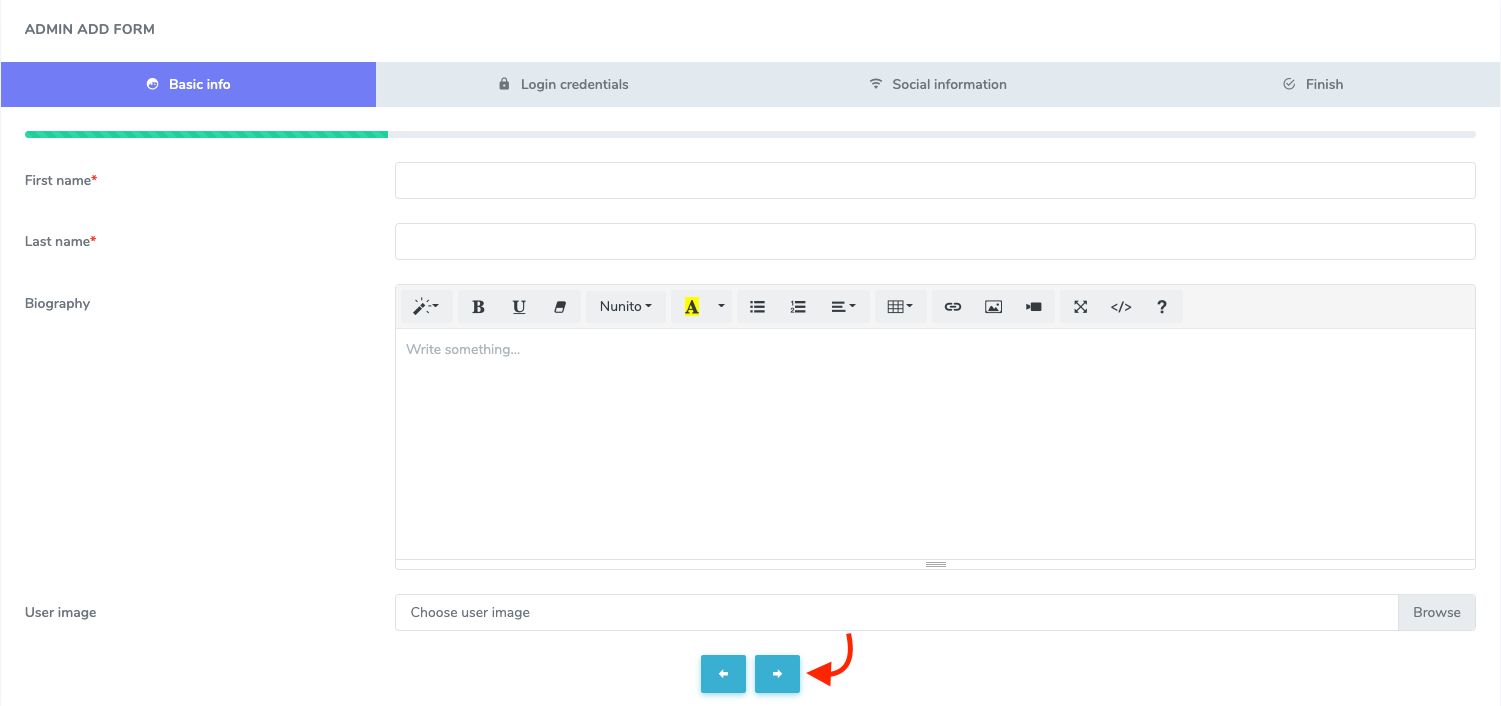
Figure 2. GoldenLMS Basic Info For Sub-admin
Login credentials:
You have to provide a login email and password to your sub-admin in this form. After that, click on the right arrow "->" button.
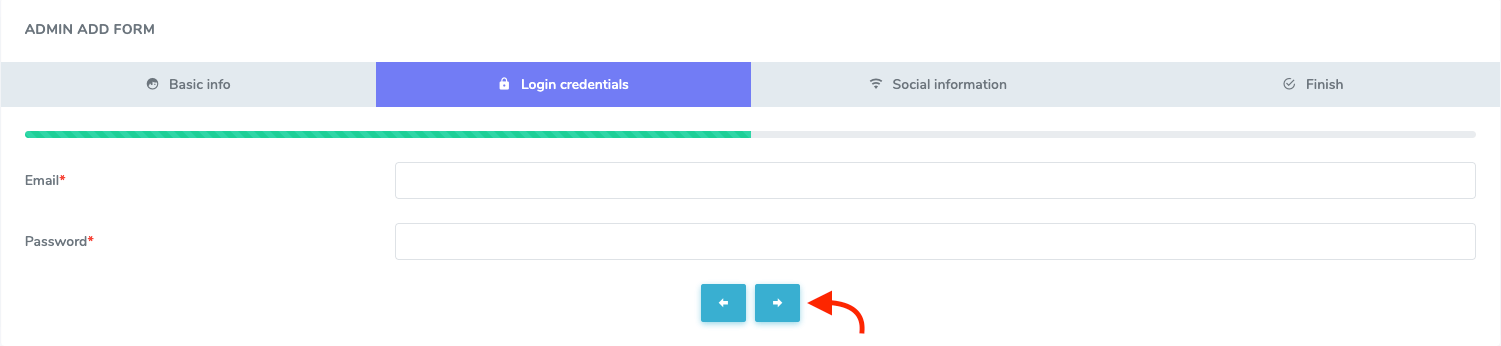
Figure 3. GoldenLMS Login Credentials For Sub-admin
Social information:
In this form, you can:
- Provide sub-admins Facebook account link.
- Provide the sub-admins Twitter link.
- Provide sub-admins Linkedin account link.
- Click on the right arrow "->" button.
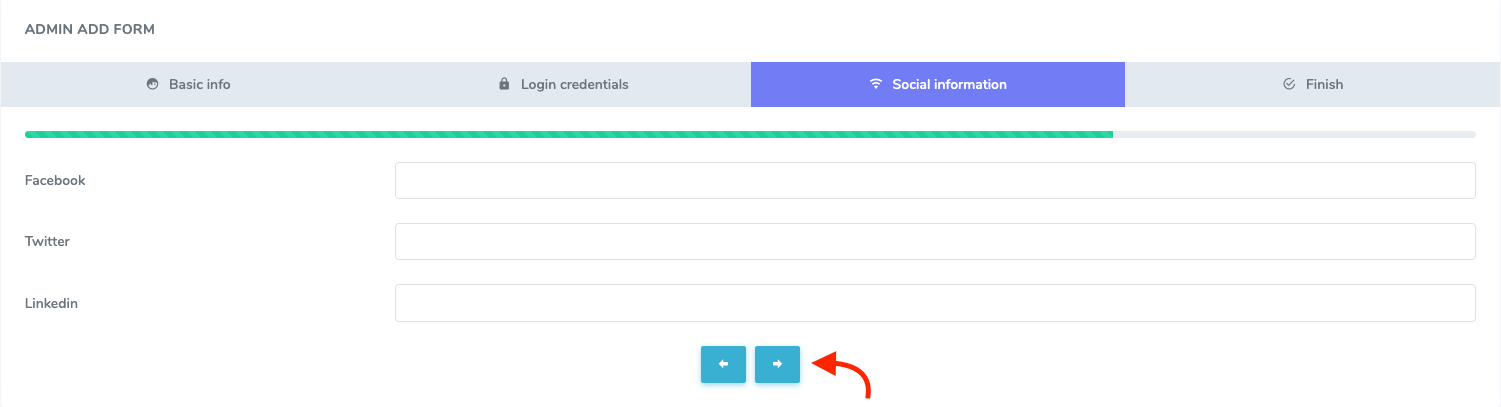
Figure 4. GoldenLMS Social Information For Sub-Admin
After completing the form, click on the "Submit" button to save your data.
Assigning permission:
You can assign permissions to your sub-admin within a click. For this, you can follow the steps below:
- Log in to the website as an admin.
- Click on the "User" option from the left menu.
- Select the "Admin" option from the sub-menu.
- Choose the "Manage admins" option.
- Select a sub-admin.
- Click on the "Action" button.

Figure 5. GoldenLMS Managing Sub-admin
- select the "Assign permission" button.
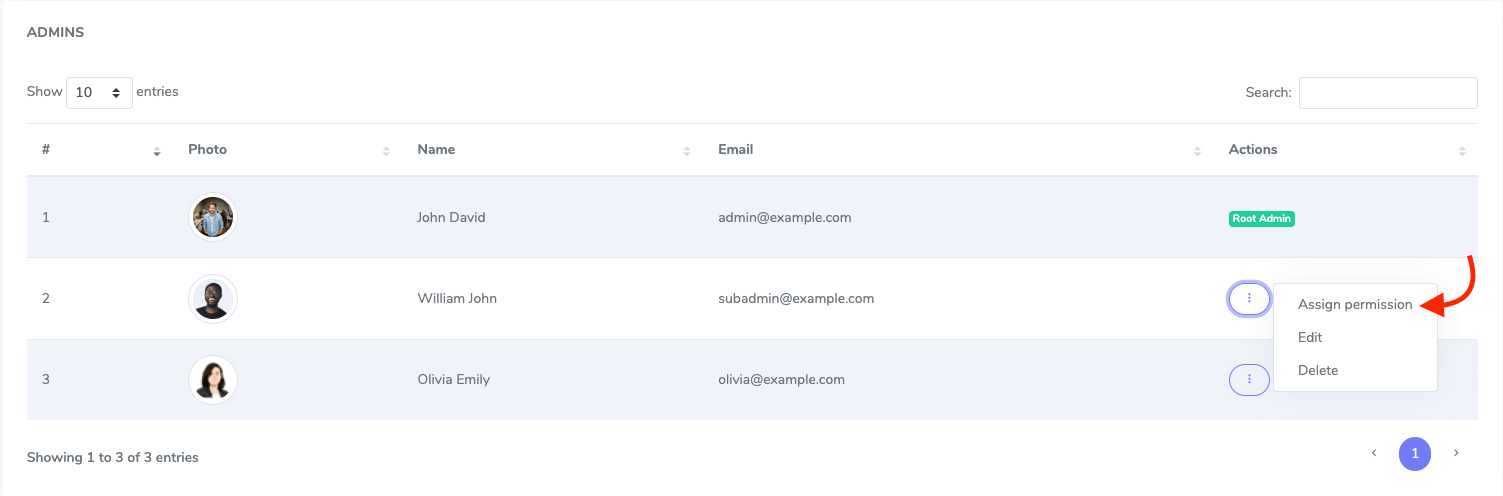
Figure 6. GoldenLMS Assign Permission
- Choose permission.
- Assign the permission by clicking the "On" and "Off" buttons.

Figure 7. GoldenLMS Assigning Permissions
Updating a sub-admin:
To update your sub-admins information, you can follow the steps below:
- Log in to the website as an admin.
- Click on the "User" option from the left menu.
- Select the "Admin" option from the sub-menu.
- Choose the "Manage admins" option.
- Select a sub-admin.
- Click on the "Action" button.

Figure 8. GoldenLMS Managing Sub-admin
- Click on the "Edit" button.
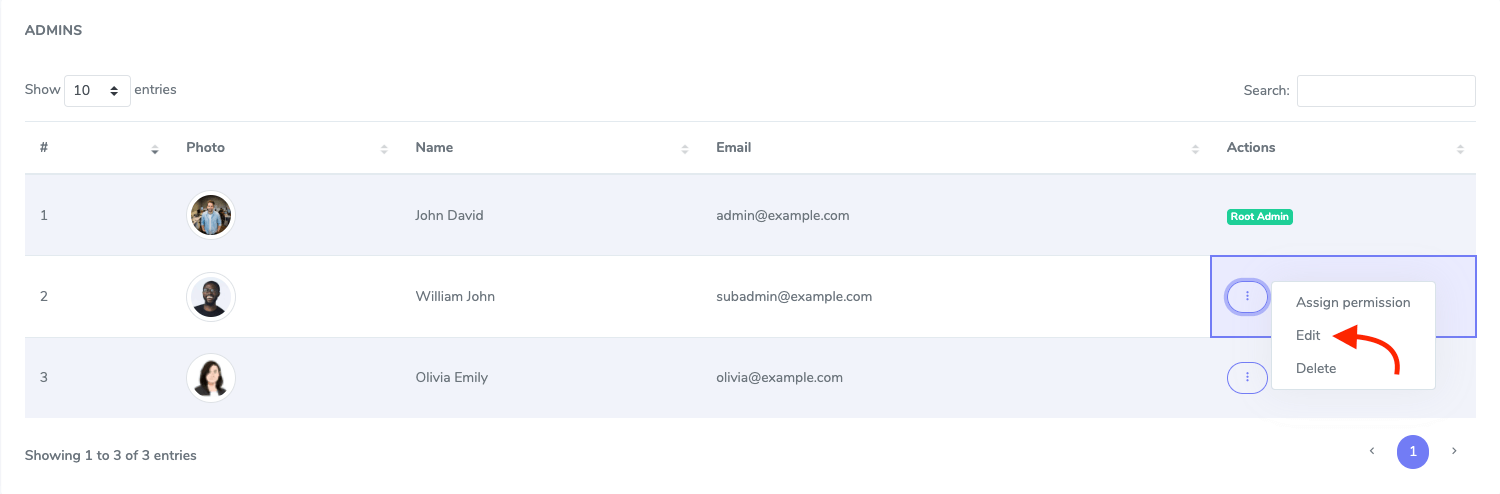
Figure 9. GoldenLMS Editing Sub-admin
- Update required information.
- Click on the "Submit" button to save your data.
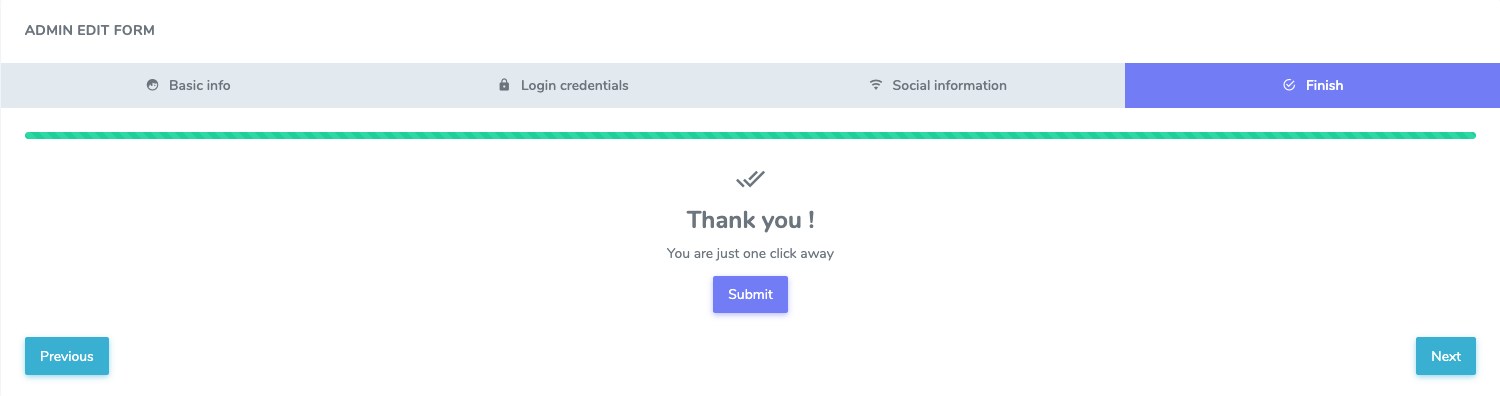
Figure 10. GoldenLMS Saving Edited Info
Deleting a sub-admin:
You can also remove a sub-admin. For this, you can navigate:
- Log in to the website as an admin.
- Click on the "User" option from the left menu.
- Select the "Admin" option from the sub-menu.
- Choose the "Manage admins" option.
- Select a sub-admin.
- Click on the "Action" button.

Figure 11. GoldenLMS Managing Sub-admin
- Click on the "Delete" button.
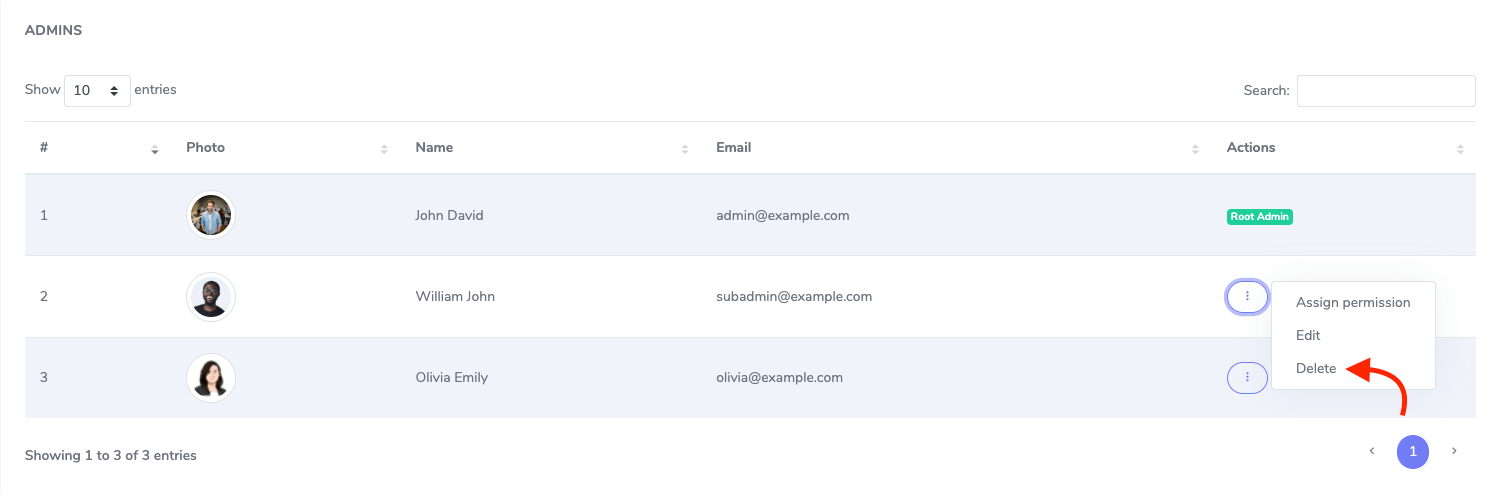
Figure 12. GoldenLMS Deleting Sub-admin
- Click on the "Continue" button for confirmation.