
How to create a quiz
In GoldenLMS, you can create multiple kinds of quizzes in a course. These quizzes make the course more effective. In GoldenLMS, you can create:
- Multiple choise question.
- Single choice question/True-false
- Fill in the blank.
A course instructor can create quizzes in a course within a few clicks. They can also see the quiz results. Also, a course instructor can set the quiz time, marks, and quiz instruction for the course student.
To create a course, a course instructor can follow the steps below:
- Log in to the admin panel.
- Select the "Course" option from the left menu.
- Choose the "Manage course" option from the sub-menu.
- Select the "Edit this course" button from "Action."

Figure 1. GoldenLMS Managing Course
- Click on the "Add quiz" button from the "Curriculum" form.

Figure 2. GoldenLMS Adding Quiz
- Provide quiz title.
- Select a section for the quiz.
- Set the quiz time. (Set the time duration to 00:00:00 for disabling the timer for the quizzes)
- Add total mark.
- Provide instruction for your students.
- Click on the "Submit" button.
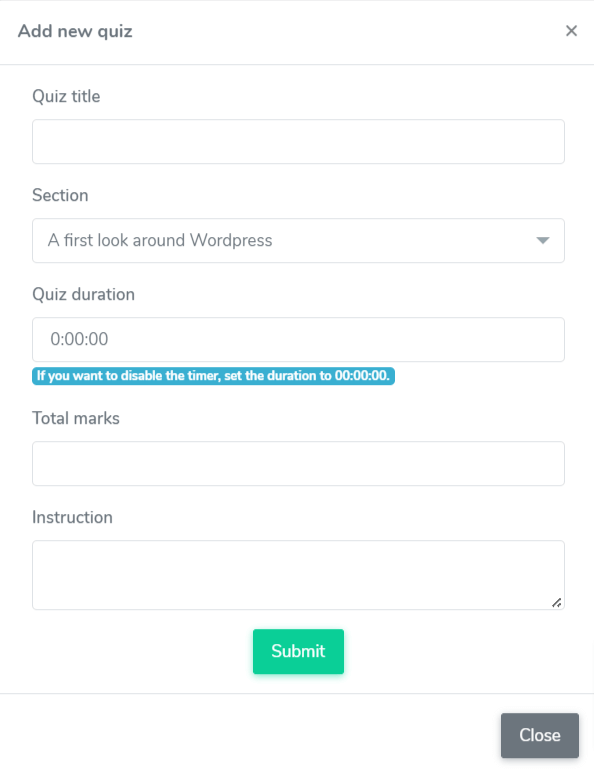
Figure 3. GoldenLMS Submitting New Quiz
The course instructor can update the quiz. For this, follow the steps below:
- Select your quiz from the course curriculum.
- Click on the "Edit" icon.

Figure 4. GoldenLMS Editing A Quiz
- Update the required information.
- Click on the "Submit" button.

Figure 5. GoldenLMS Submitting Updated Quiz
To remove a quiz, a course instructor can follow the steps below:
- Select a quiz from the "Curriculum" option.
- Click on the "X" icon.

Figure 6. GoldenLMS Deleting A Quiz
- Click on the "Continue" button for confirmation.
Multiple choise question
You can provide questions with multiple options and answers in this question type. Your students can choose multiple answers here. To create multiple choice question, follow the steps below:
- Select your quiz from the course curriculum.
- Click on the "Question box" icon.

Figure 7. GoldenLMS Quiz Question
- Click on the "Add new question" button.

Figure 8. GoldenLMS Adding New Quiz
- Write down your question in the blank box. (You can change font style, theme, bold, underline, color, add tables, link, video, and image)
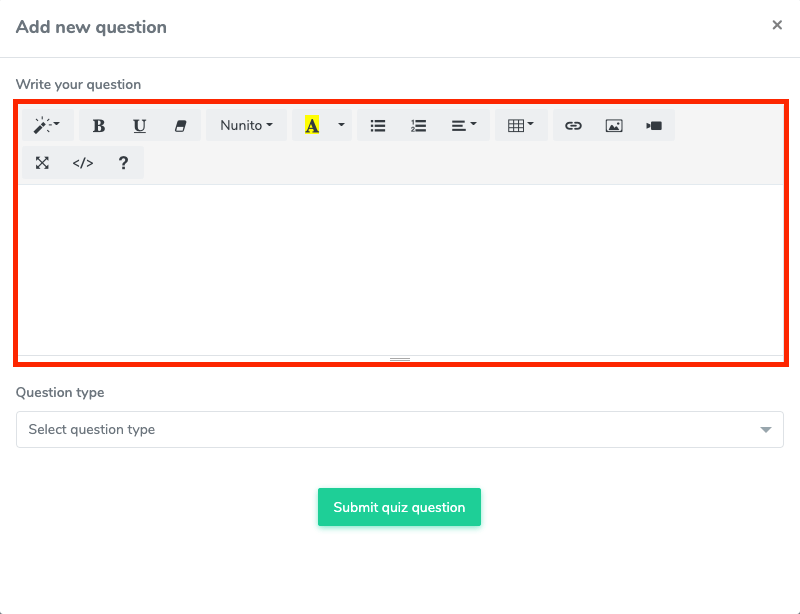
Figure 9. GoldenLMS Question Adding Field
- Click on the "Select question type" option.
- Choose the "Multiple choice" option.
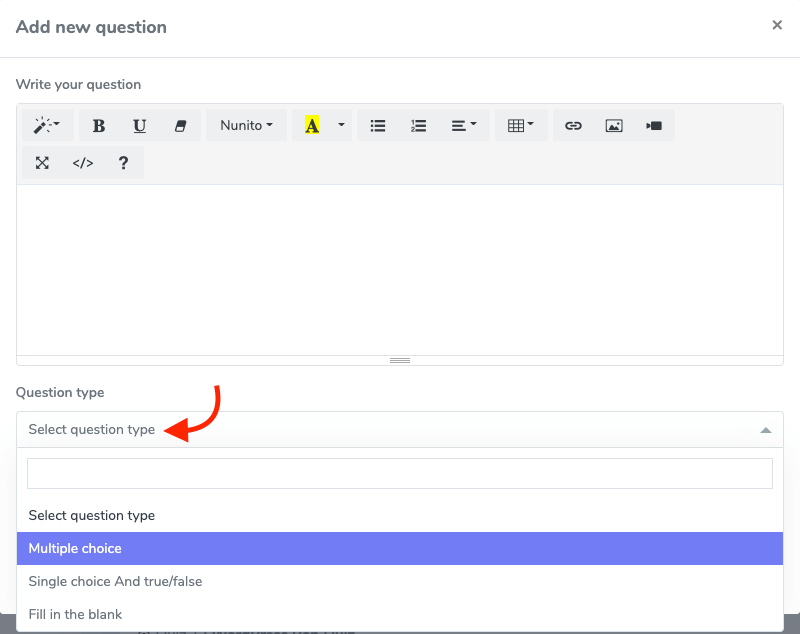
Figure 10. GoldenLMS Adding Multiple Choice Question
- Provide the number of options.
- Add the options name.
- Click on the bar if the answers are correct. (The course instructor can add multiple correct answers)
- Click on the "Submit quiz question" button.
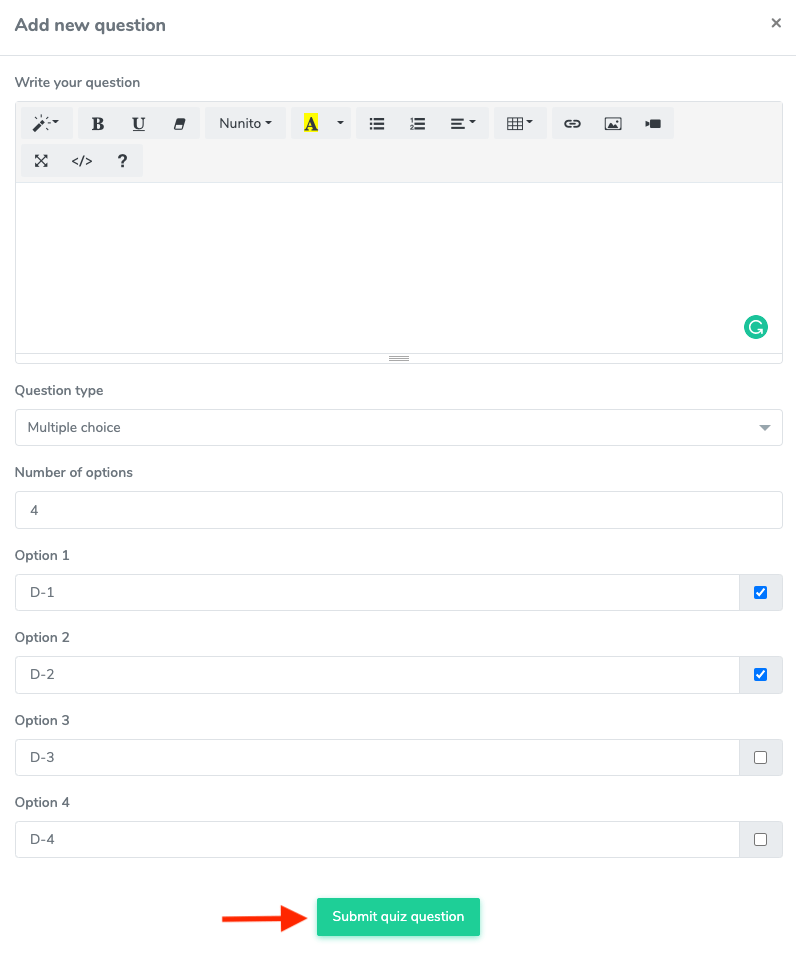
Figure 11. GoldenLMS Submitting New Multiple Choice Question
The course instructor can update the multiple-choice question at any time. For this, follow the steps below:
- Select your quiz from the course curriculum.
- Click on the "Question box" icon.

Figure 12. GoldenLMS Quiz Question
- Select the question.
- Click on the "Edit" icon.

Figure 13. GoldenLMS Updating Quiz Question
- Update required information.
- Click on the "Submit quiz question" button.
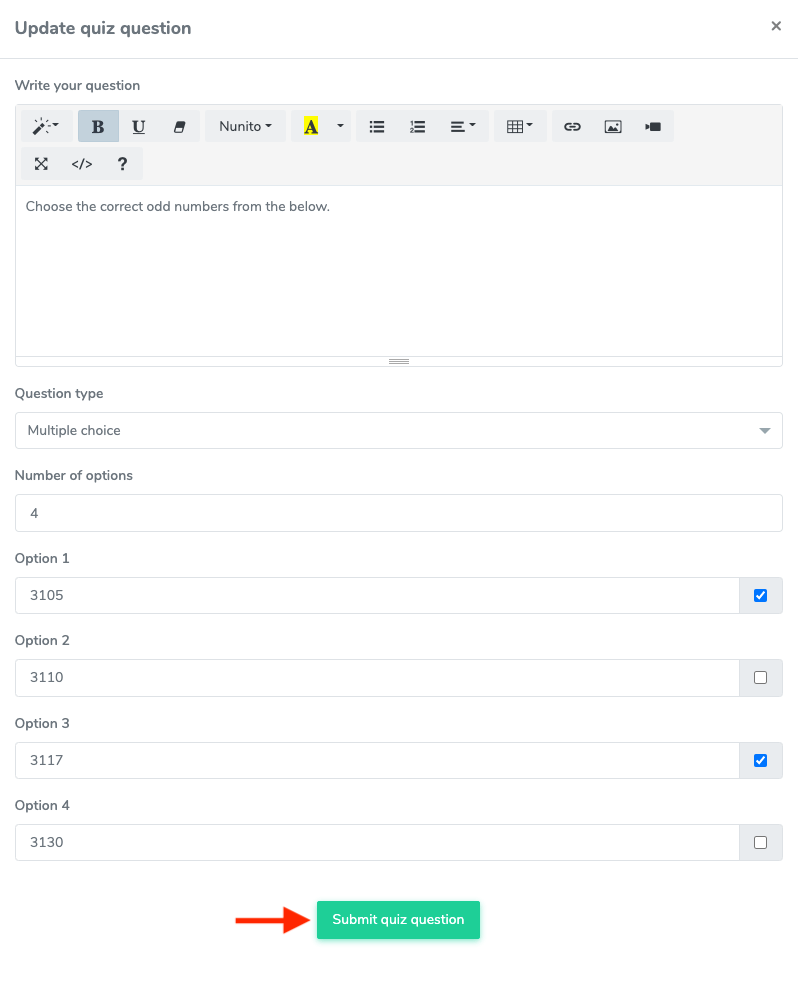
Figure 14. GoldenLMS Submitting Updated Question
To remove a multiple-choice question, the course instructor can follow the steps below:
- Select your quiz from the course curriculum.
- Click on the "Question box" icon.

Figure 15. GoldenLMS Quiz Question
- Select the question.
- Click on the "X" icon.

Figure 16. GoldenLMS Deleting A Quiz Question
- Select the "Continue" button for confirmation.
Single choice question/True-False
The course instructor can provide questions with a single correct answer in this question type. Your students can choose an answer here. The course instructor can also use single-choice questions as true and false. Set one option for "True" and another option for "False." Students have to select any one answer.
To create the single choice question, follow the steps below:
- Select your quiz from the course curriculum.
- Click on the "Question box" icon.

Figure 17. GoldenLMS Quiz Question
- Click on the "Add new question" button.

Figure 18. GoldenLMS Adding New Quiz Question
- Write down your question in the blank box. (The course instructor can change font style, theme, bold, underline, color, add tables, link, video, and image)
Figure 19. GoldenLMS Quiz Question Adding Box
- Click on the "Select question type" option.
- Choose the "Single choice" option.
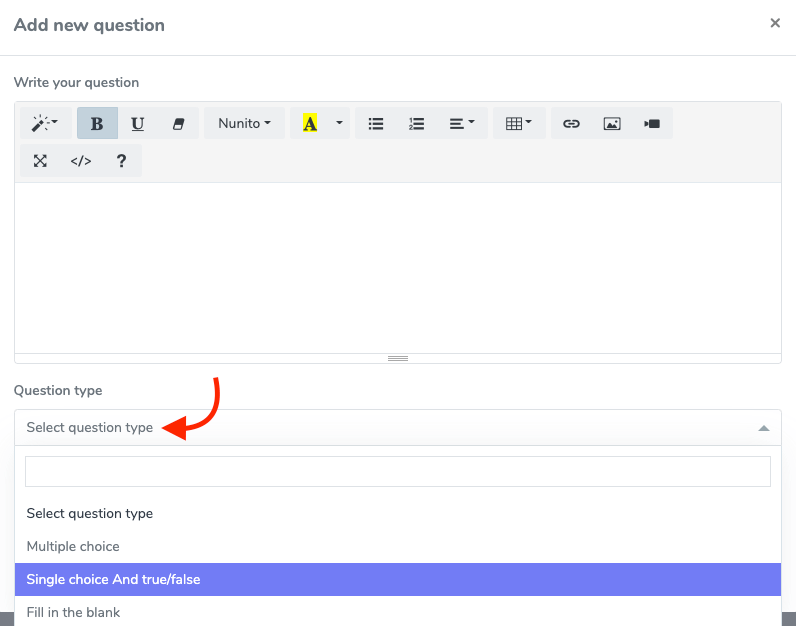
Figure 20. GoldenLMS Selecting Single Choice Or True/False Type Question
- Provide the number of options.
- Add the options name.
- Click on the bar if the answers are correct. (The course instructor can click a correct answer)
- Click on the "Submit quiz question" button.
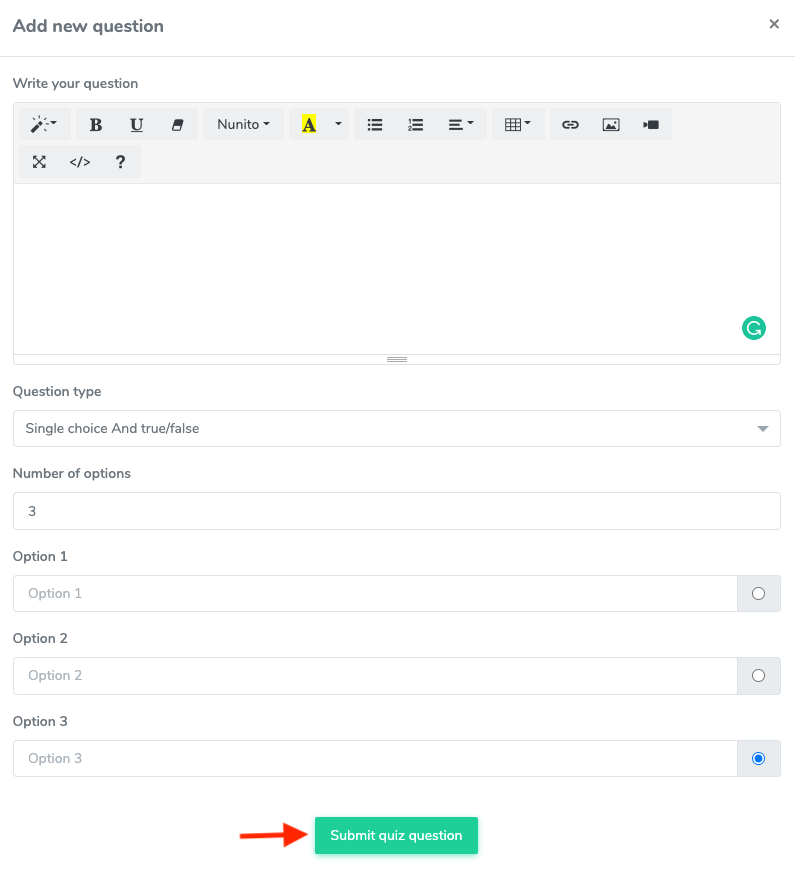
Figure 21. GoldenLMS Submitting New Quiz Question
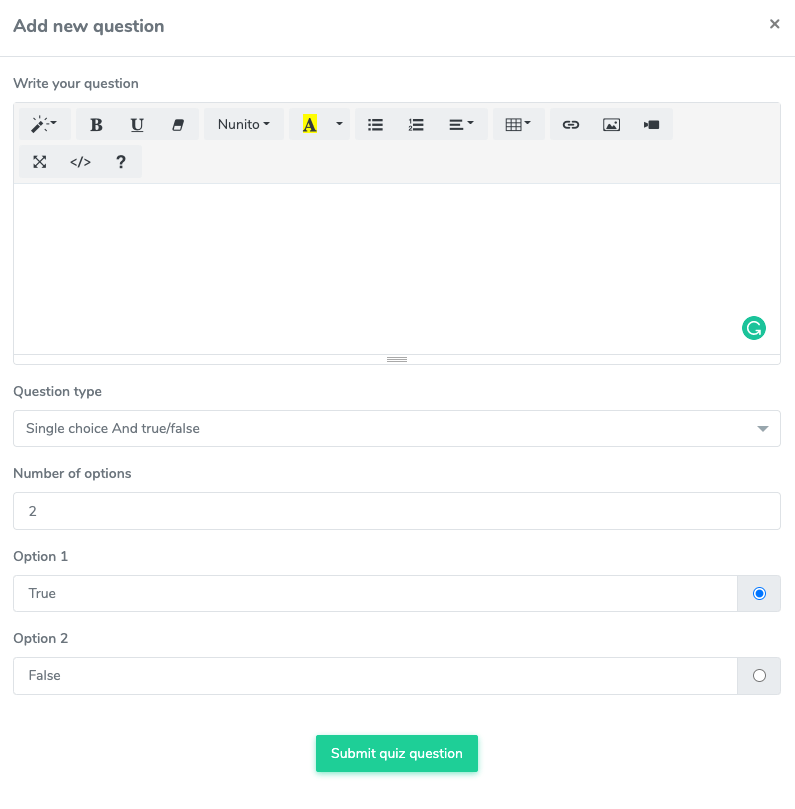
Figure 22. GoldenLMS Adding True/False Type Question
The course instructor can update the single-choice question/true-false at any time. For this, follow the steps below:
- Select a quiz from the course curriculum.
- Click on the "Question box" icon.

Figure 23. GoldenLMS Quiz Question
- Select the question.
- Click on the "Edit" icon.

Figure 24. GoldenLMS Updating Quiz Question
- Update required information.
- Click on the "Submit quiz question" button.
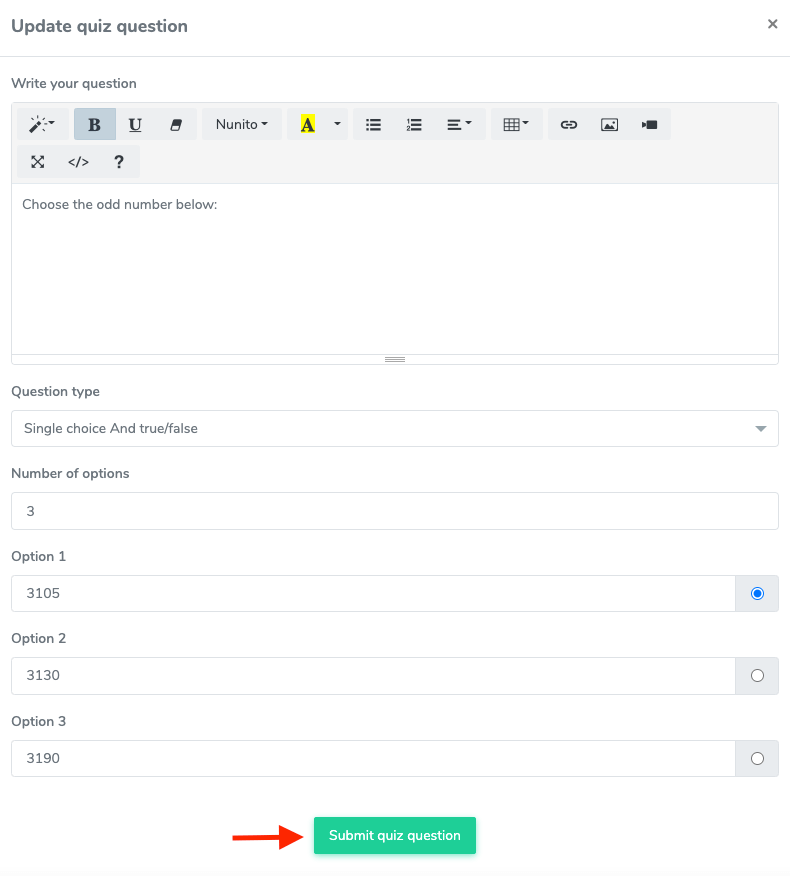
Figure 25. GoldenLMS Submitting Updated Question
To remove a single-choice question, the course instructor can follow the steps below: