
How to create course category
In GoldenLMS, the admin can create the category and sub-category to filter the course easily.
With this doc, we will help you to create the course category.
To create a course category, you have to navigate:
- Log in to the admin panel.
- Select the "Course" option from the left menu.
- Click on the "Course category" option from the sub-menu.
- Select the "Add new category" option.

Figure 1. GoldenLMS Adding Course Category
In this new form, you have to provide:
- Category code
- Category name
- Parent category
- Icon picker
- Category thumbnail (You can choose from your device)
After that, select the "Submit" button to save your data.
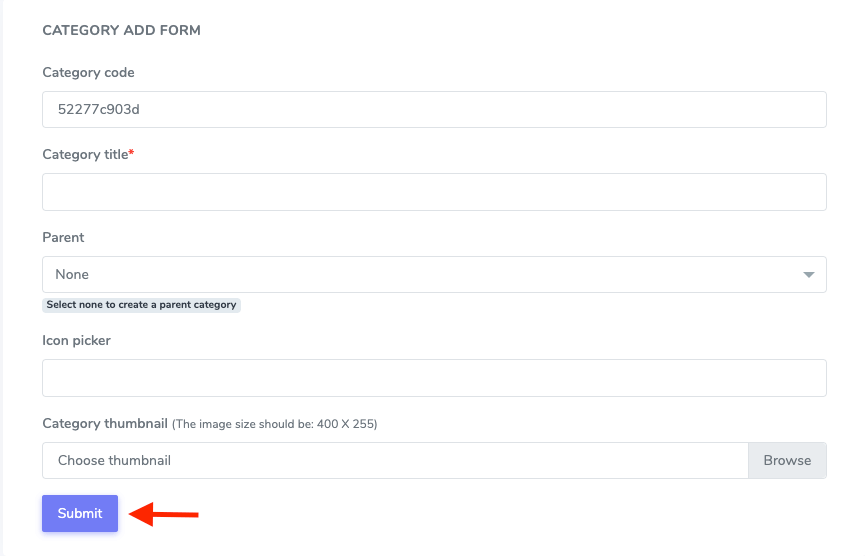
Figure 2. GoldenLMS Submitting Course Category
To update or modify the category info, you have to select the "Edit" button from the category you want.
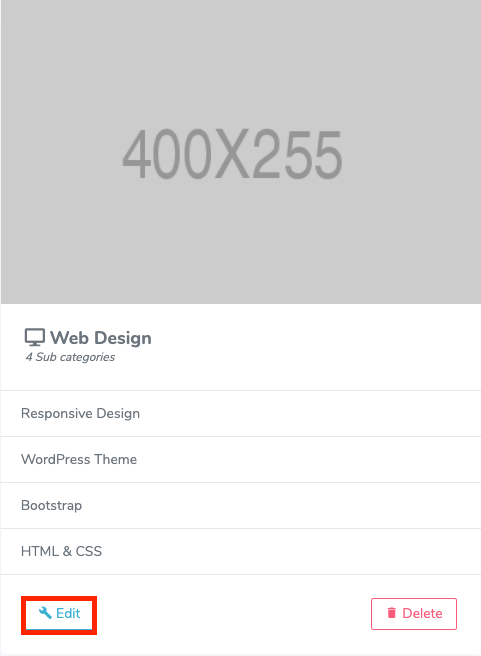
Figure 3. GoldenLMS Editing Course Category
After updating the provided info, you have to select the "Submit" button for confirmation.
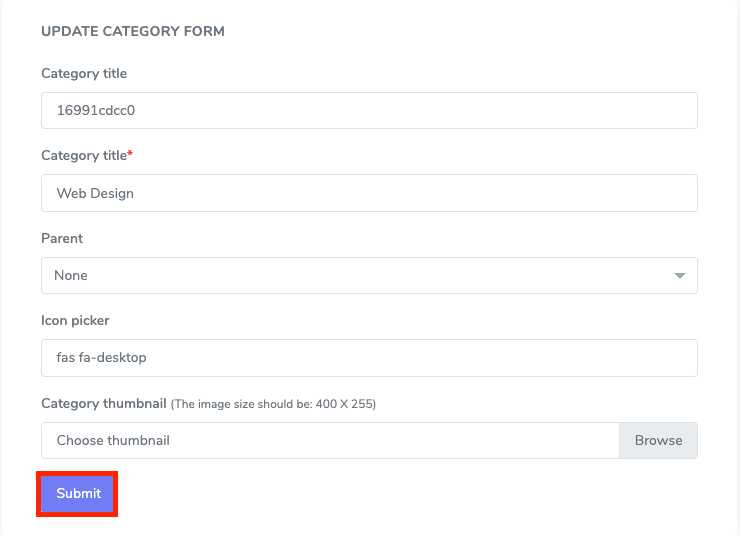
Figure 4. GoldenLMS Adding a Course Category
To Remove the category, you have to select the "Delete" button and select the "Continue" option for confirmation.